
Complete Your Profile
This guide walks you through creating your corporate account, verifying your email, and completing your organisation's profile, so your company is ready to start an Enabling Mark application.
Step 1: Create Your Account
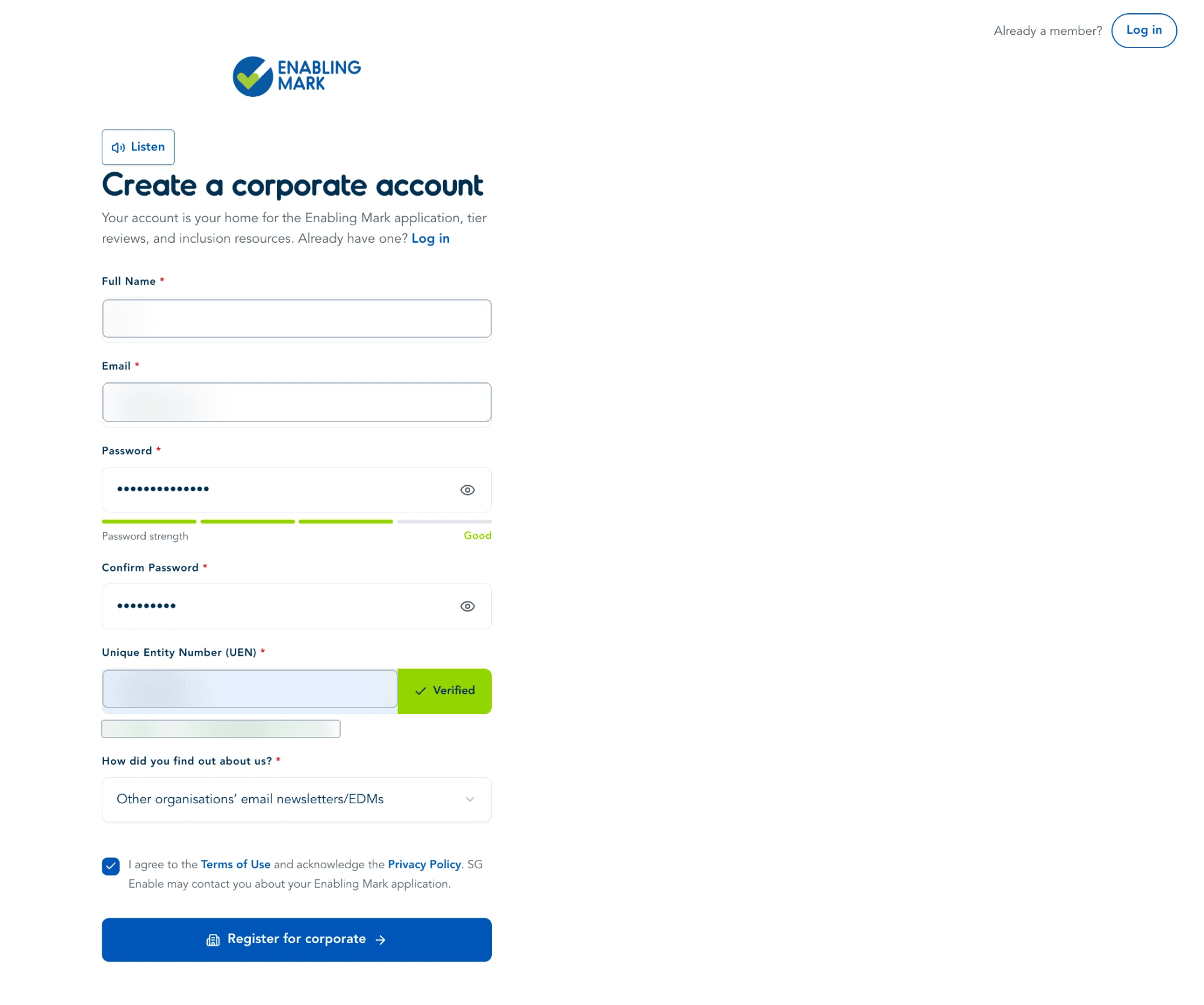
Fill in your full name, email, and a password, then verify your Unique Entity Number (UEN) before registering.
Important
- Double-check your UEN before clicking Verify UEN — it's checked against Singapore's UEN registry (ACRA and other issuing agencies), so a typo will fail verification.
- One UEN can only be registered once. If your organisation already has a corporate account under this UEN, registration is blocked to prevent duplicate accounts — use Log in (or Forgot password) instead of creating a new one.
- If you believe your organisation is already registered but you don't have access, ask an existing Company Representative at your organisation to invite you rather than registering again.
Step 2: Verify Your Email
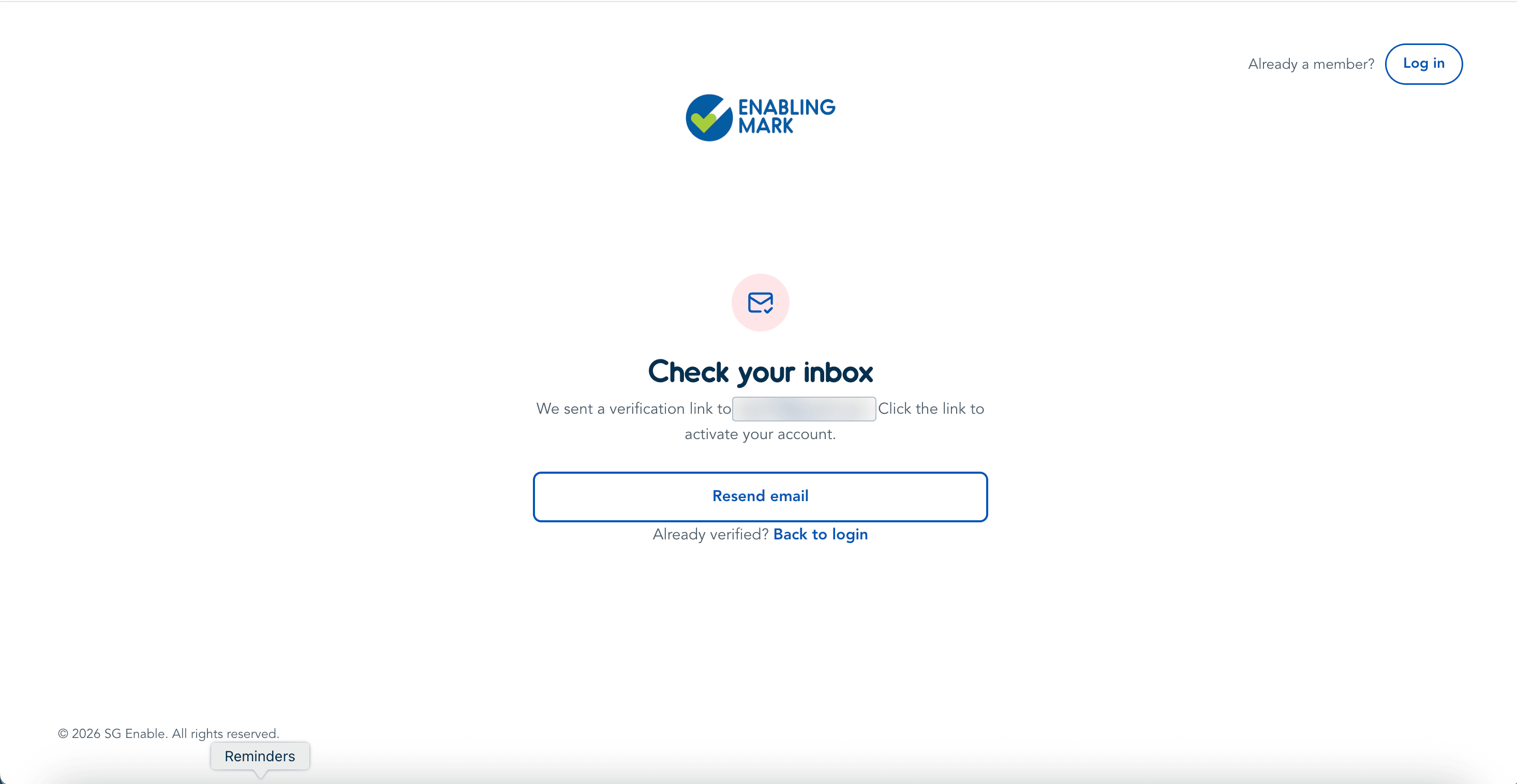
After registering, we'll send a verification link to the email address you signed up with. This same link both verifies your email and takes you straight into completing your profile — you don't need to log in first.
Tips
- Didn't get the email? Use Resend email on this screen before contacting support.
- Clicking the link opens Complete Your Profile directly (see Step 3 below) — logging in isn't possible until your profile is complete.
Step 3: Complete Your Profile
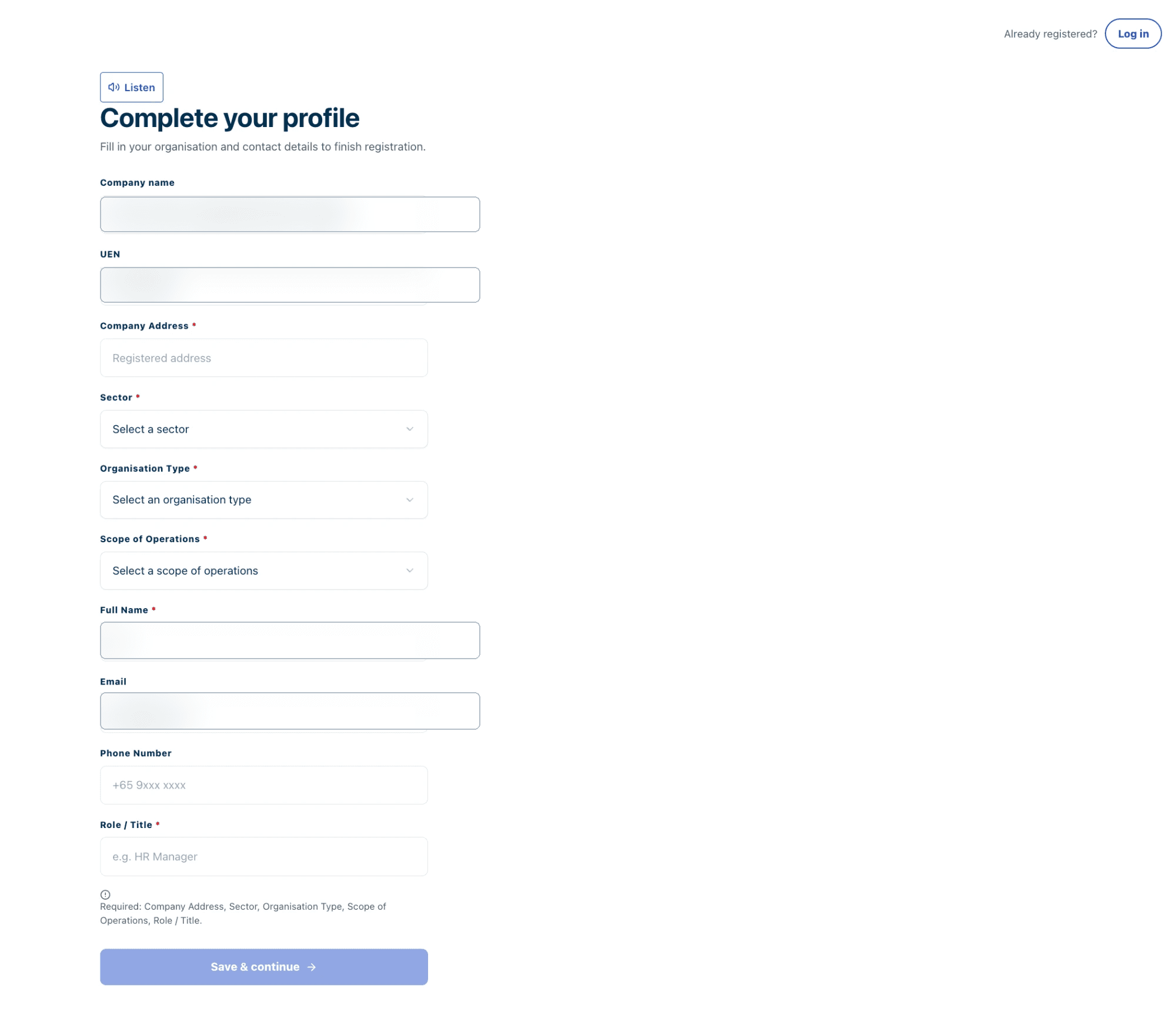
Clicking the verification link brings you here. Fill in your organisation's details — fields marked with a red asterisk (*) are mandatory and must be completed before you can continue; the form won't let you proceed until they're all filled in.
This includes your company's registered address, sector, organisation type, and scope of operations, followed by your own contact details (full name, email, phone, and role):
Important
- You can only log in after your profile is complete — until then, logging in isn't possible. Once you've saved your profile, head to Logging In.
Last updated on