
Inviting a Representative
Any existing Company Representative can invite additional people from your organisation to access the Company Portal. Each invited person gets their own login and can view and edit the application on your behalf.
Step 1: Open Company Representatives
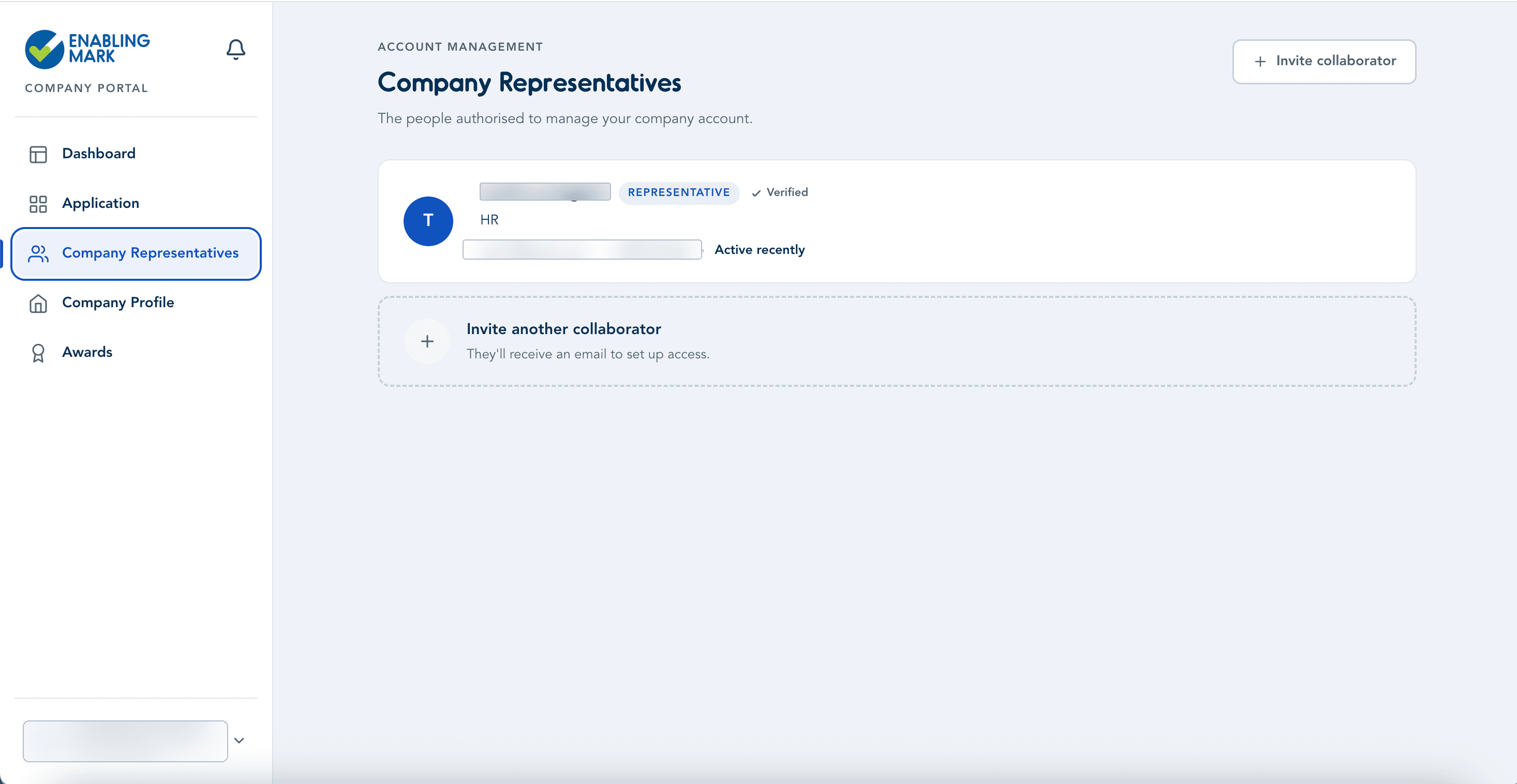
Go to Company Representatives in the sidebar. You'll see a list of everyone currently with access to your account.
Step 2: Send the Invitation
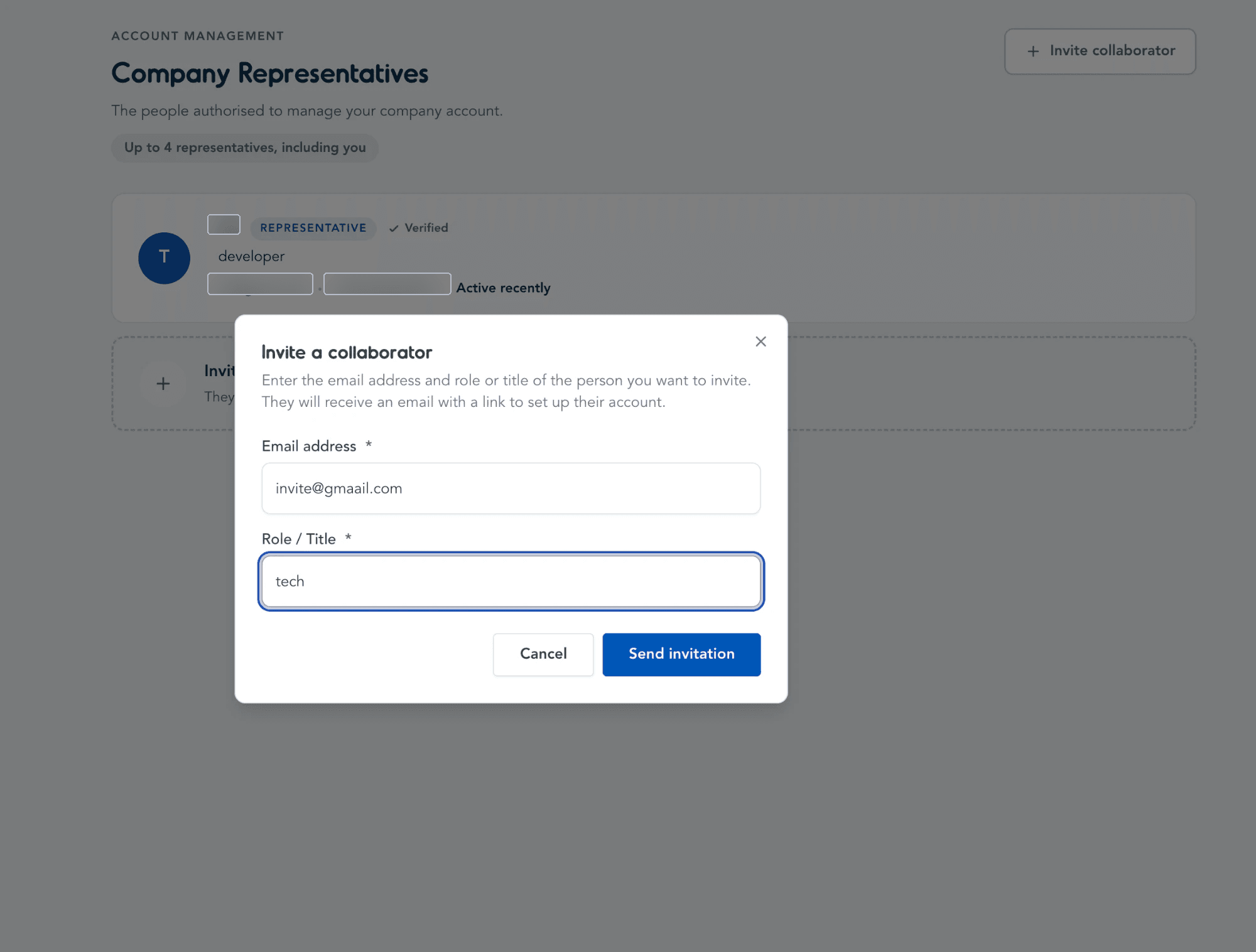
Click Invite collaborator, then enter the new representative's email address and role/title — both marked with a red asterisk (*) and required before you can send the invitation. They'll receive an email with a link to set up their account.
What the invited representative sees
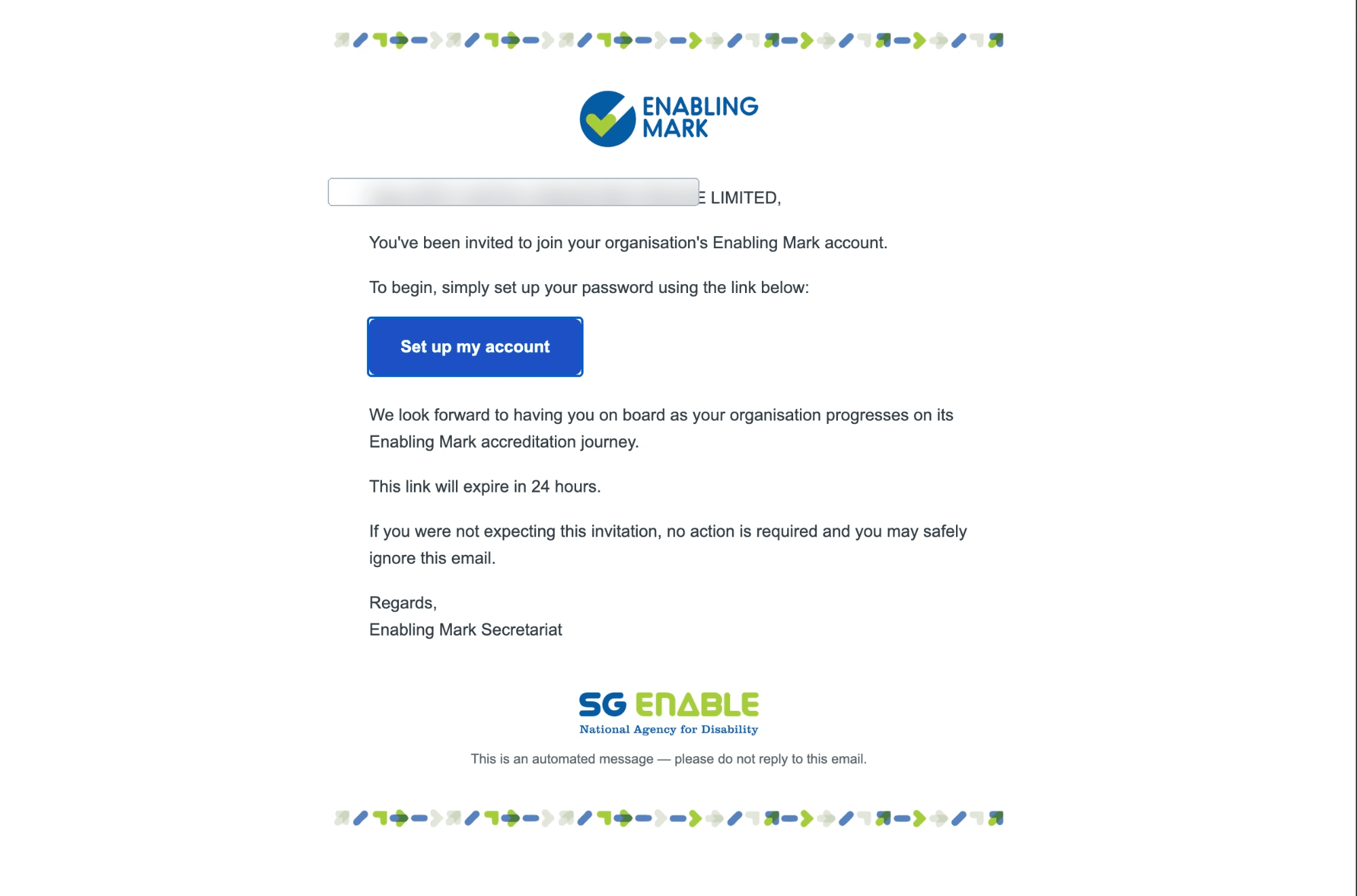
They'll receive an email addressed to your organisation, with a Set up my account button. This link expires in 24 hours.
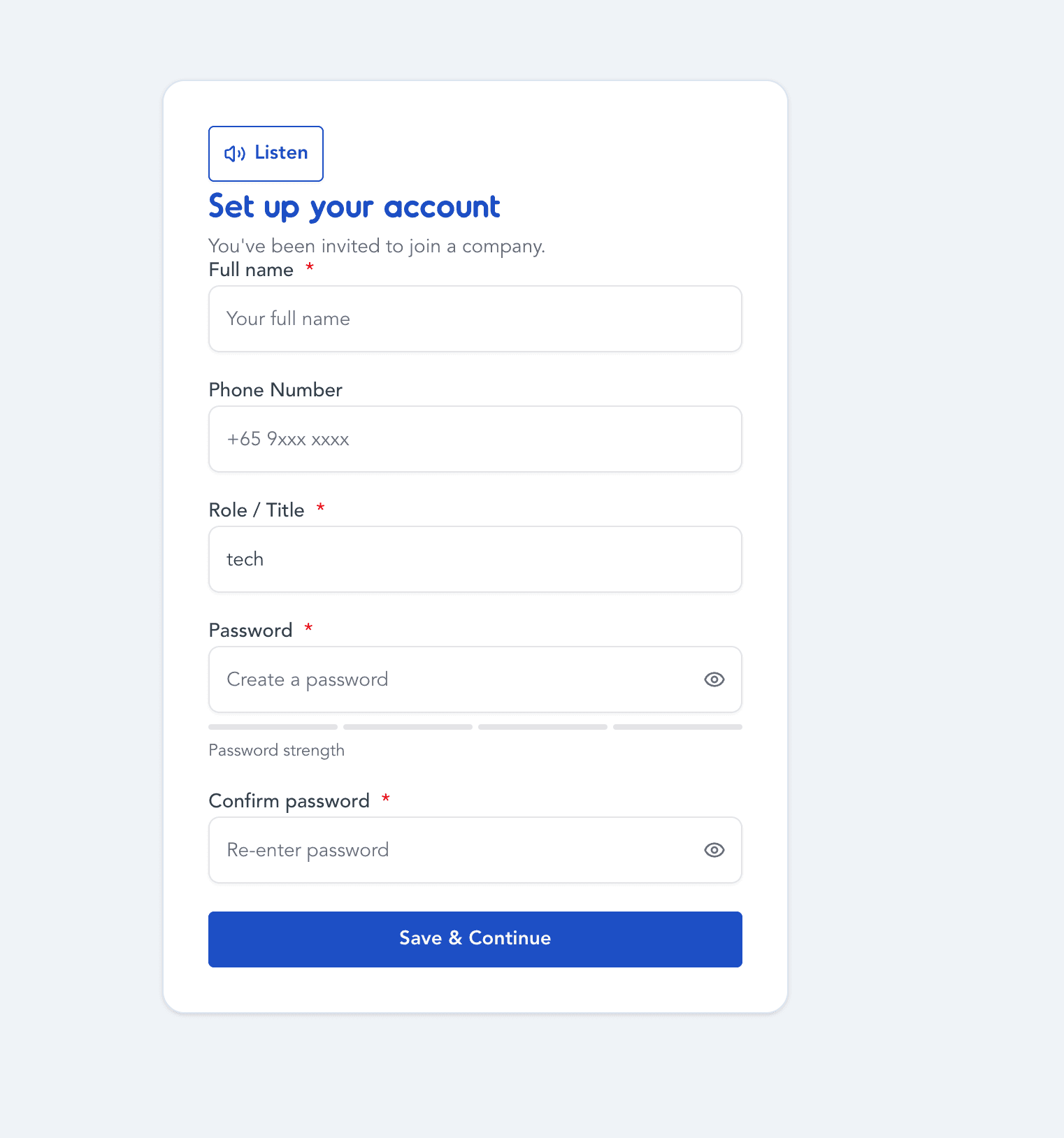
Clicking the button takes them to a Set up your account page, where they fill in their full name and a password (both required), and optionally a phone number. Their role/title carries over from the invite. Once saved, they're added as a verified representative on your account.
Last updated on