
Submitting the Application
Once all 5 sections of your application are marked Complete, you can submit it for assessment.
Step 1: Confirm All Sections Are Complete
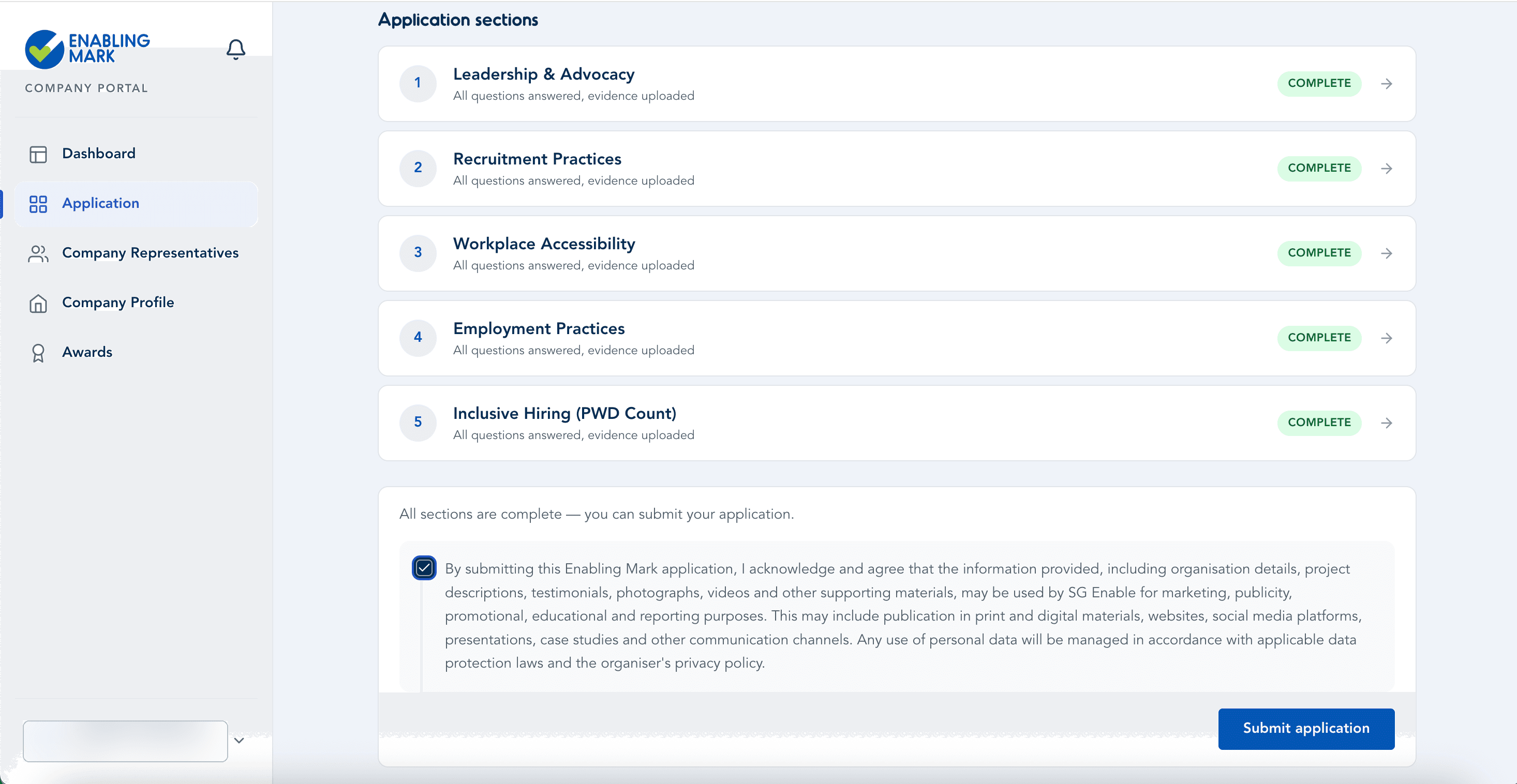
Go to Application in the sidebar. When every section shows Complete, a submission panel appears at the bottom of the page.
Step 2: Accept the Declaration and Submit
Read the declaration carefully, then tick the checkbox to confirm your agreement. Once ticked, click Submit application.
Important
Submitting is final — you won't be able to edit your application after this point. Double-check all your answers and uploaded evidence before clicking Submit application.
Step 3: Submission Confirmed
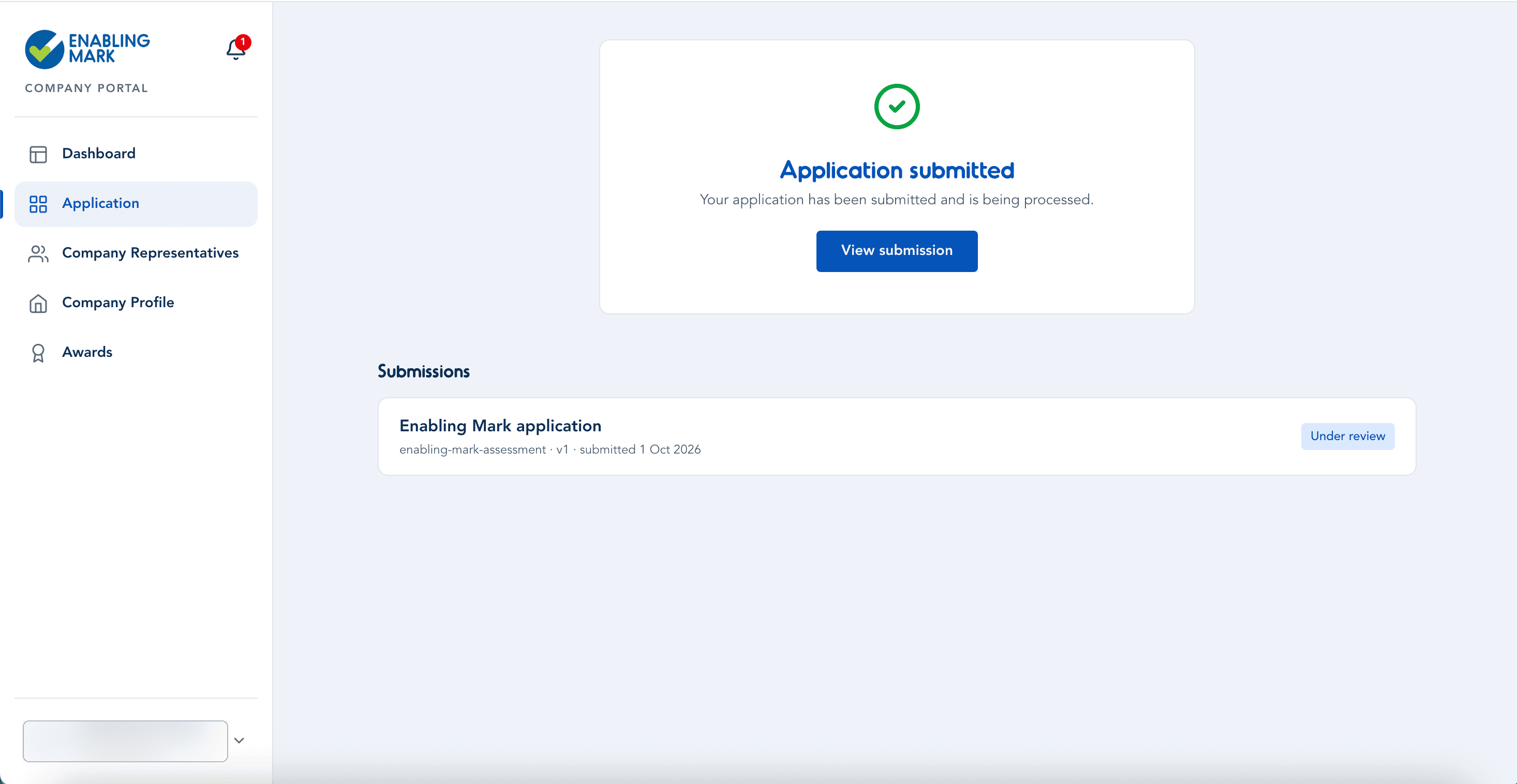
Once submitted, you'll see a confirmation screen. Click View submission to see your submitted application.
What Happens Next
Your submitted application will appear in the Submissions list with a status of Under review. SG Enable will review your application and you'll be notified once the outcome is ready.
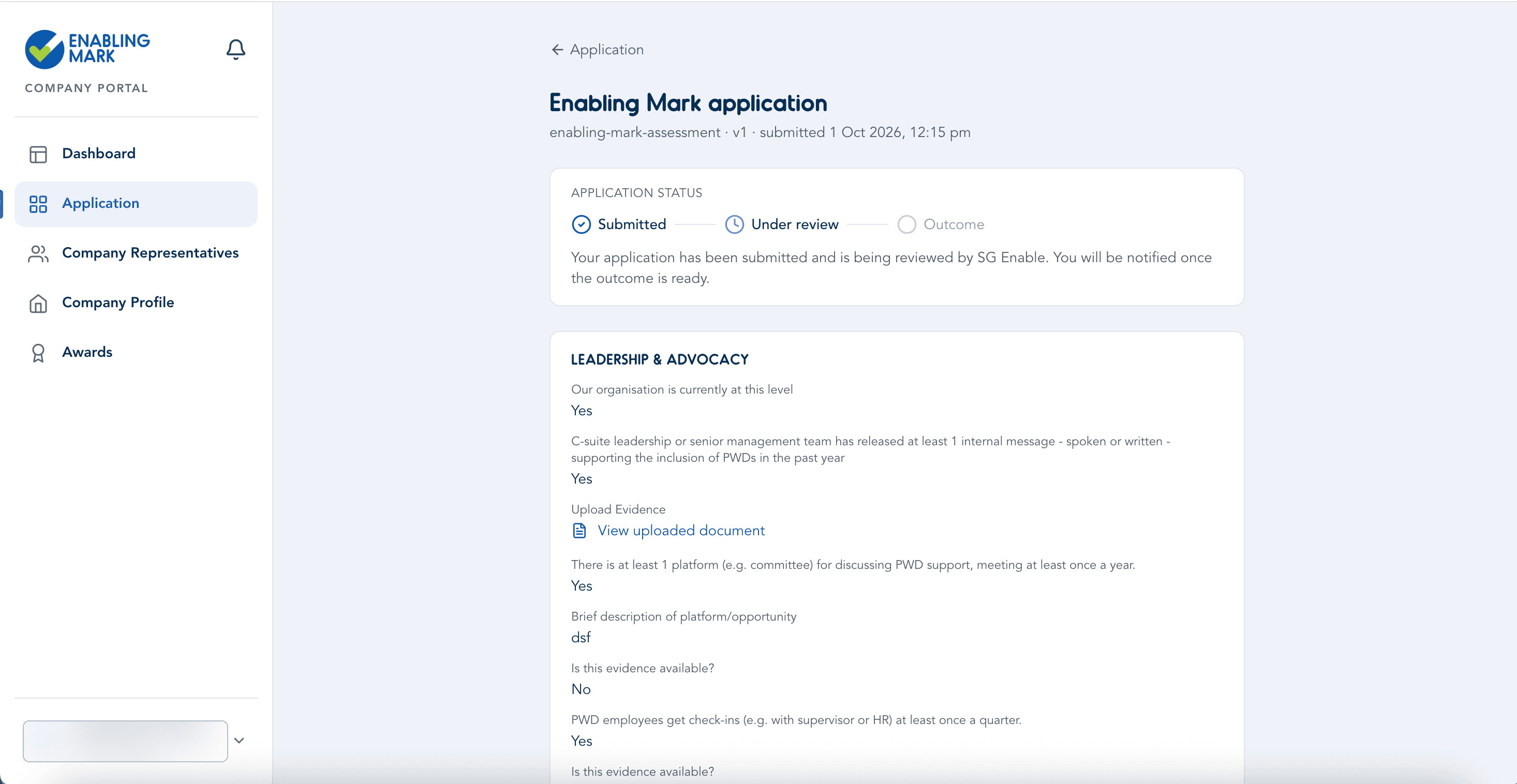
The application detail page shows a status tracker — Submitted → Under review → Outcome — so you can see exactly where things stand at any time. You don't need to do anything further while it's under review.
Once a decision is reached, check your Awards page for your accreditation status and certificate.
Last updated on